

The error "Too many attempts. Please try again later" on TikTok is one of the most frustrating. You just want to log into your account, but the app keeps blocking your attempts as if you were a robot or a hacker. As a result, you waste time, get stressed, and sometimes even lose money if your account is tied to ads or service sales.
The good news is that this error does not mean that your account is permanently blocked. In most cases, it is simply a TikTok security mechanism that can be carefully bypassed through an official, safe, and completely legal method of restoring access.
Below is a detailed, step-by-step guide with illustrations on how to solve the "Too many attempts" issue and log back into your account.
The guide below is an official and safe method of restoring access to your TikTok account. It does not violate the platform’s rules, works on both Android and iPhone, and is especially useful when TikTok shows the "Too many attempts" message and does not allow you to log in normally.
Why the "Too many attempts" error appears on TikTok
TikTok actively protects user accounts from hacking and suspicious activity. If the system detects too many failed login attempts, frequent IP changes, VPN usage, different devices, or incorrect data entries, it activates protection and temporarily blocks authorization.
As a result, TikTok displays a message such as: "Too many attempts. Please try again later". Sometimes it appears immediately when entering your login/password, and sometimes after entering the verification code.
Step-by-step guide: how to bypass "Too many attempts" and log in to TikTok
Below is a detailed algorithm that allows you to officially restore access to your account, even if TikTok has blocked the standard login due to too many attempts. Follow the steps carefully, do not rush, and give the app time to "think" at each stage.
Step 1. Open the TikTok app and tap "Log in"
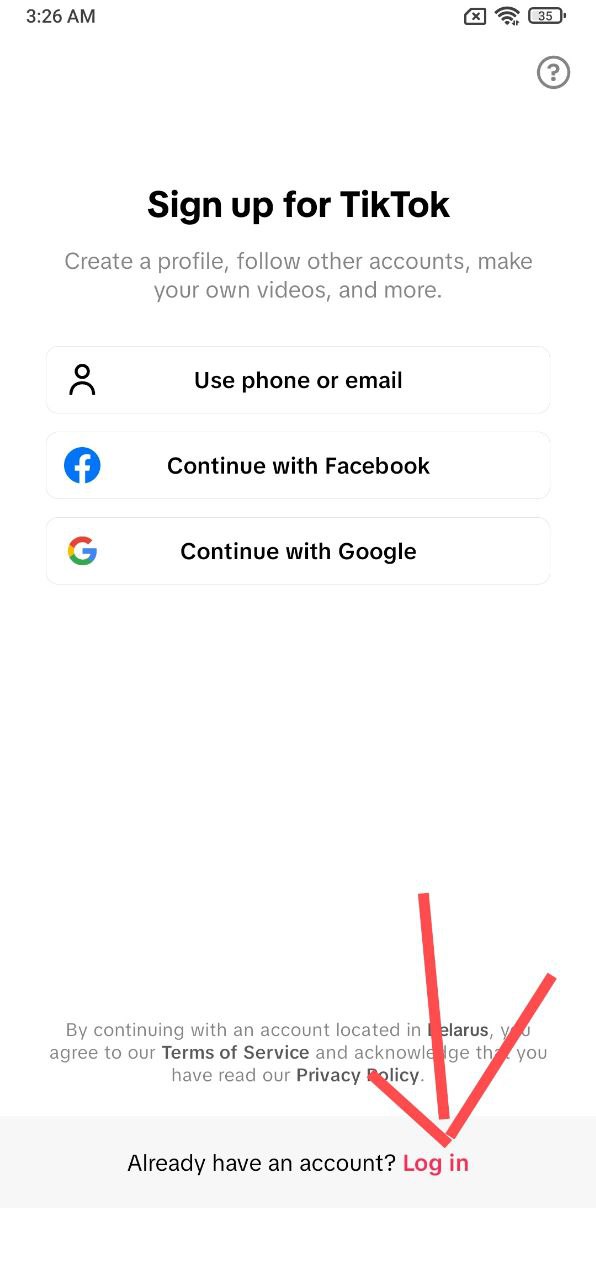
Launch the TikTok app on your smartphone. On the start screen you will see the "Log in" button (or "Войти" if the interface is in Russian).
Tap this button as if you were going to sign in normally. Even if you have already seen the "Too many attempts" error, we still need to access the login section.
If you already have an account open but want to log in to another one, first log out of the current profile via "Profile → Menu → Log out", and then tap "Log in" again.
Step 2. Tap the question mark icon
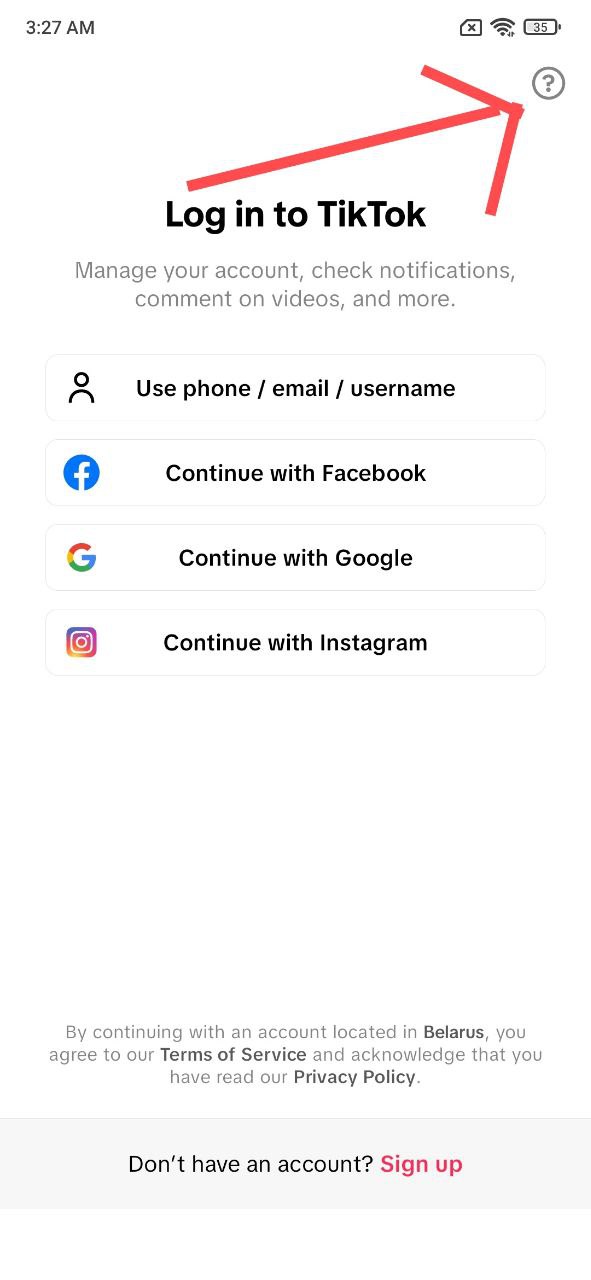
On the login screen, where TikTok asks you to enter your username, phone number, email, or sign in through social networks, find the question mark icon (usually located in the top-right corner).
This icon opens the help section for login and account recovery. Tap it — this is exactly the section we will use to bypass the "Too many attempts" restriction.
If you don’t see the icon immediately, carefully check the corners of the screen. In some versions of the app it may be slightly shifted, but it is always located on the authorization screen.
Step 3. Select “Account recovery”
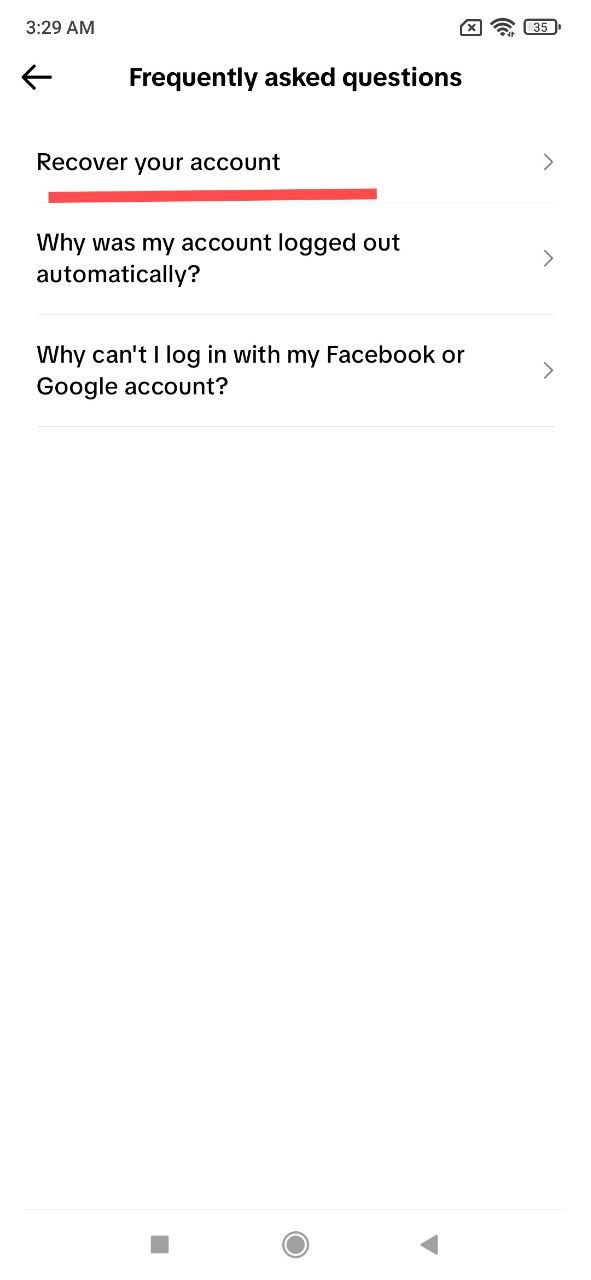
After tapping the question mark, the help section will open. Here TikTok offers several options for solving login issues. The option we need is "Account recovery".
Tap this option. This will start the official access recovery process, which works even when the standard login is blocked due to too many attempts.
Do not use third‑party websites or “recovery services” that ask for your login and password. The official method works only through the TikTok app and this section.
Step 4. Enter your username and tap search
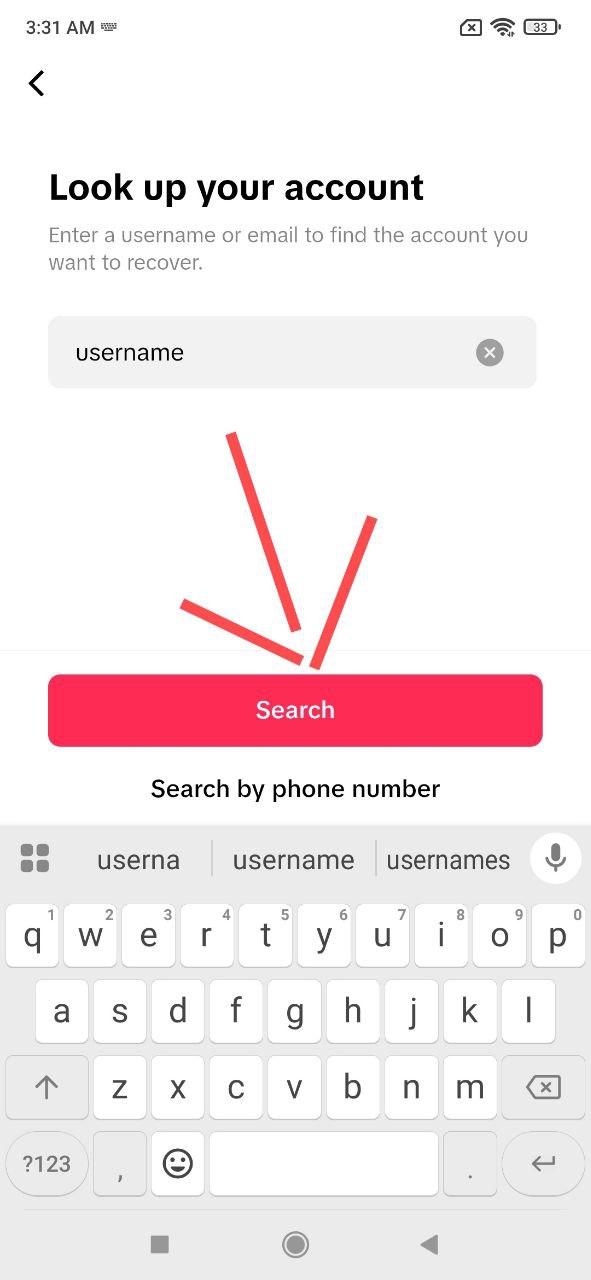
On the next screen TikTok will ask you to specify the account you want to restore access to.
Enter your username — the name shown in your profile after the
@ symbol.
After entering the username, tap the "Search" button. The app will find your account and offer identity verification options.
If you don’t remember the exact username, try the variations you usually use. You can also search for your profile from another device or browser to check the correct username.
Step 5. Verify via email
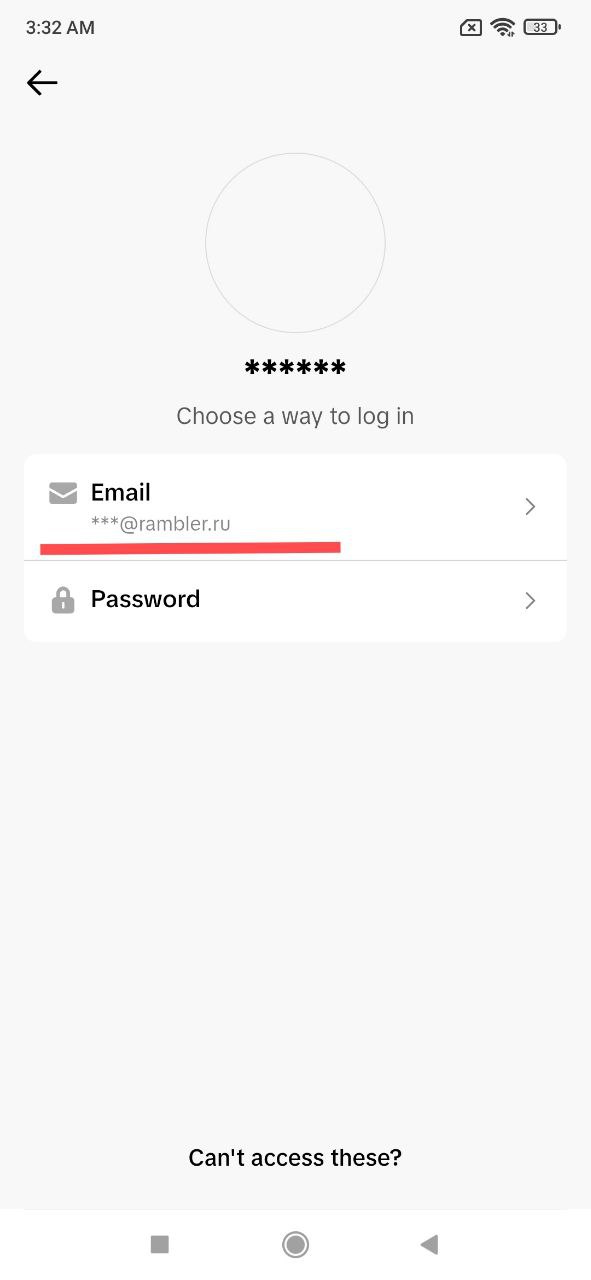
After you tap "Search", do not rush to press everything immediately. Give the app a little time — about 5–10 seconds — so it can fully load the recovery options.
Then choose the verification method via the email linked to your account. TikTok usually shows part of the email address while hiding some characters so you can recognize it.
If you have access to both your email and phone number, it is better to choose the option that is more reliable and that you are sure you still have access to.
Step 6. Enter the code from the email and wait for it to load
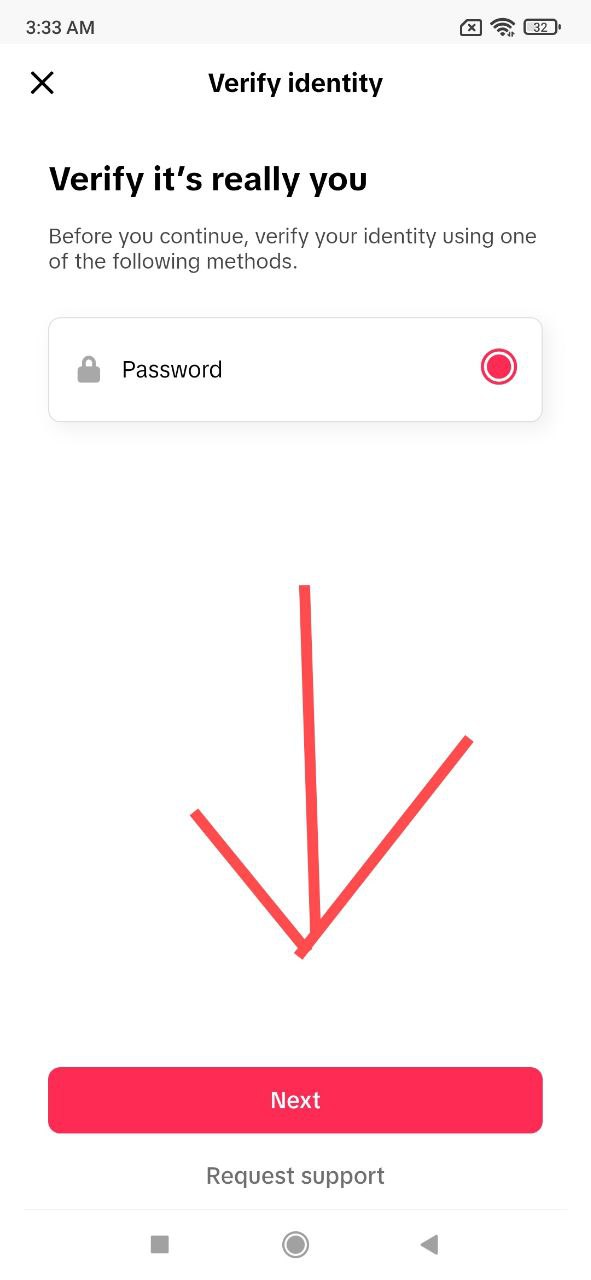
An email from TikTok with a verification code will be sent to your email address. Open it, carefully enter the code into the app, and tap "Next".
After entering the code, wait 5–15 seconds while TikTok processes the request. Do not close the app or switch to other windows so the process is not interrupted.
Next, the system may ask you to confirm your account password. Select the password field and tap "Next".
Step 7. Enter the password of the account you want to access
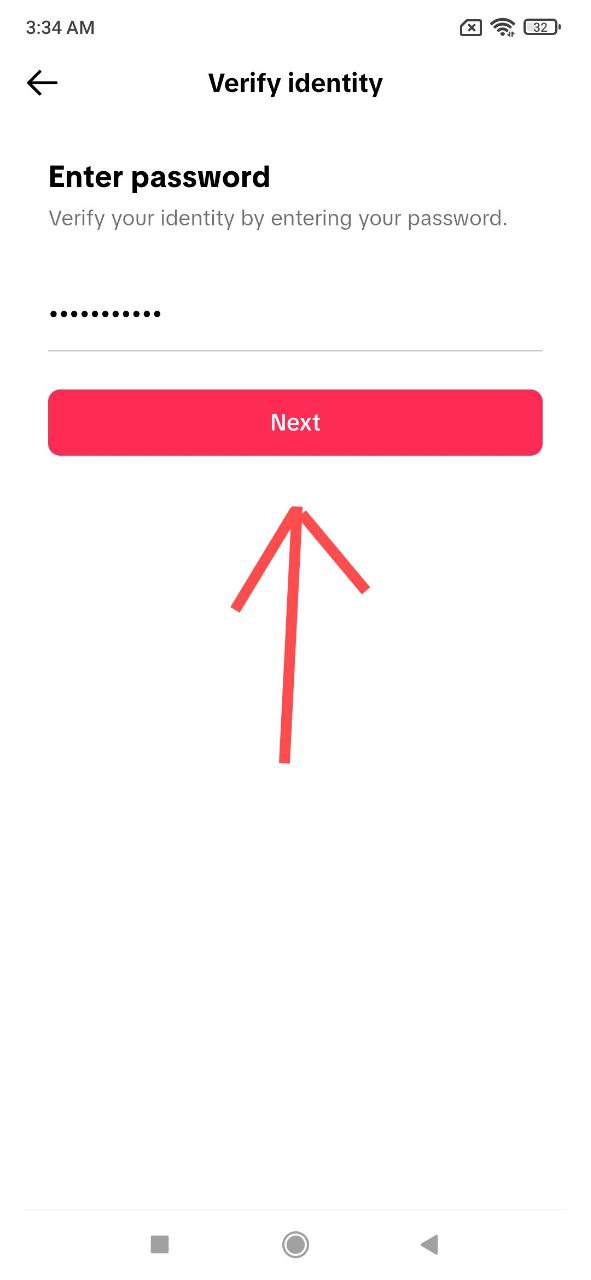
Now enter the password for the account you are trying to restore access to. This should be the current password that you used the last time you logged in.
After entering the password, tap the "Next" button. The app may take a moment to process, so don’t panic if nothing happens for 5–10 seconds.
If you do not remember your password, do not try to guess it dozens of times. It is better to immediately use the password reset option via email or phone to avoid triggering new restrictions.
Step 8. Wait for the successful login notification
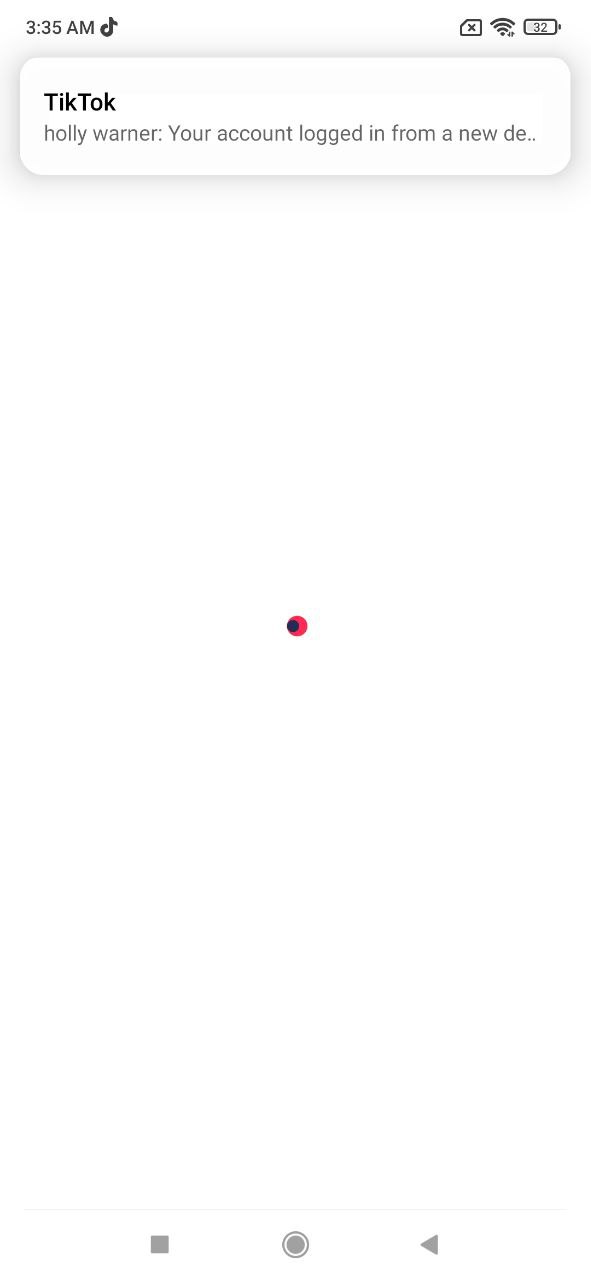
After a few seconds, TikTok will show a notification that you have successfully logged into your account. This means the "Too many attempts" restriction has effectively been bypassed using the official recovery mechanism.
If after 15–20 seconds you are not automatically redirected to your feed, return to the main login screen. In most cases the feed will already be available and the account will be authorized.
This behavior is especially common if there were no previously logged-in accounts on the device. If at least one profile was already authorized, TikTok usually opens the recovered account immediately after successful recovery.
What to do if the error still appears after recovery
Sometimes TikTok may continue to behave strangely even after a successful login: it may ask you to confirm your details again, log you out of the account, or periodically show the “Too many attempts” message. In this case, it’s important not only to restore access but also to minimize the risk of the issue happening again.
| Problem | What to do |
|---|---|
| It asks for a code every time you log in | Check that you are not using a VPN and make sure you log in from the same device. |
| You are occasionally logged out of the account | Update the app to the latest version, clear the TikTok cache, and restart your phone. |
| The “Too many attempts” error appears without reason | Avoid entering your password repeatedly. Wait 10–15 minutes between attempts. |
| Possible account hacking | Change your password, remove suspicious devices, and enable two‑factor authentication. |
How to avoid the “Too many attempts” error in the future
To avoid coming back to this guide every time TikTok thinks you are “too active,” it helps to slightly adjust how you use the app. Below are a few practical tips that actually work.
- Do not enter your password dozens of times in a row. If you cannot log in, use the recovery option immediately.
- Minimize VPN usage. Frequent IP changes look suspicious to the security system.
- Link an active email and phone number. This makes account recovery quick and safe.
- Do not share your password. If someone else tries to log in to your account, TikTok may block login attempts.
- Keep the app updated. Older versions sometimes work unstably and produce more errors.
Frequently asked questions about the “Too many attempts” error on TikTok
How long does the “Too many attempts” restriction last?
Usually the restriction lasts from a few minutes to several hours. However, if you keep trying to log in continuously, the time may increase. That’s why it’s better to use the official recovery method via the question mark and “Account recovery”.
Can I just wait and the error will disappear?
Technically yes, but it is not always effective. If you have already tried to log in multiple times and continue doing so, TikTok may extend the restriction. Following the recovery steps above is usually much more reliable.
Does this method work on iPhone and Android?
Yes, the procedure is the same for Android and iOS devices. The interface may look slightly different visually, but the steps remain the same: login → question mark → “Account recovery” → username → email verification → password confirmation.
The email code does not arrive. What should I do?
Check the “Spam” folder, make sure the email address is correct, and confirm that you still have access to it. Sometimes the message may arrive with a delay of 2–5 minutes. If it takes longer, try requesting the code again or use your phone number if it is linked to the account.
Can I lose my account because of this error?
The “Too many attempts” error itself does not mean your account is blocked. It is only a temporary protection measure. However, if you enter your details on third‑party websites or share your password with others, the risk of losing your account increases significantly. Always use the official method through the TikTok app.
Quick summary: what to do if TikTok says “Too many attempts”
- Do not panic and do not keep trying repeatedly. Multiple attempts only extend the restriction.
- Open TikTok and tap “Log in”.
- Tap the question mark icon on the login screen.
- Select “Account recovery”.
- Enter your username and tap “Search”.
- Wait 10–15 seconds, then choose verification via email.
- Enter the code from the email and wait for it to process.
- Confirm your account password and tap “Next”.
- Wait for the successful login notification and return to the main screen if needed.
By following this guide, you can officially and safely restore access to your TikTok account, even if the system has blocked the standard login due to “too many attempts”. Save this page — it may help you or your clients again in the future.